The Complete Node.js Developer Course - Andrew Mead
Welcome
Welcome to the Class
Exploring the Course Curriculum This course is split into 4 main sections. In part 1, we're going to build a note taking app. In part 2, we're going to build a weather app. In part 3, we're going to build a task-manager app. In part 4, we're going to build a real-time chat app.
Learn by Writing Code In the beginning, we're going to learn by coping what we see. This is essential in exploring new features for the first time, but not good for building up your problem solving capabilities, which is why there are many personal challenges involved.
Tips for Asking Questions The course Q&A is where you can go to get help if your app randomly crashes, or something's not compiling correctly.
Grab the PDF Guide
This is a great guide that contains code examples, documentation, notes, etc...
Installing and Exploring Node.js
Section Intro: Installing and Exploring Node.js
We'll be setting up Node.js and a text editor that works very well with Node.js.
Installing Node.js and Visual Studio Code
To install Node.js, just download the most current version on nodejs.org and follow the install prompt. To make sure the latest version is installed, open the command prompt, and type node -v.
To install Visual Studio Code, just go to the website and follow the install instructions.
What is Node.js?
Previously, JavaScript was limited to running on the browser. Node.js allows JavaScript to run outside of the browser on servers and machines. Node.js runs on the V8 JavaScript Engine from Chrome. This engine is written in C++ and helps the browser compile and read JavaScript code.
Node.js is a JavaScript runtime. This means that we write our code in regular JS and it will give us access to special tools and libraries.

Node and JavaScript both rely heavily on the V8 engine. When we want to interact with some files, or something on the DOM, we are actually using C++ to do that, and when we write something in our code, we're just telling the V8 engine what it should do because it uses C++.
When we open the Command Prompt and type node in, we're put into what's called a REPL. Which stands for Read Evaluate Print Loop, and it lets us run some simple node commands.
What are some of the differences? With regular JS, we can call the window or document property and it will give us lots of options to do with the browser window,but this isn't available in Node.js because we don't interact with the browser window.
Some node functions include process, and process.exit()
Why Should I Use Node.js
"Node.js uses an event-driven, non-blocking I/O model that makes it lightweight and efficient." I/O stands for Input Output, and Node uses I/O anytime it communicates with the outside world. Non-blocking means that while Node is waiting for something to happen, it can continue processing other things.

NPM came preinstalled with Node. NPM contains packages for almost everything and is a very useful tool.
Your First Node.js Script
We're going to set up a folder on the desktop, someplace to keep all of our scripts, and then open that in VSCode.
The first Node script is a simple console.log(), but it's important to note that console.log is not exclusive to JavaScript and isn't even part of the language itself, it's part of the runtime.
The Node documentation is available on the website, just select the version that is installed.
To run a simple Node script using the integrated terminal in VSCode, simply type node and add the file name that you want to run, node hello.js.
Node.js Module System (Notes App)
Section Intro: Node.js Module System
In this section, the focus will be on the Node module system in three different ways. Importing core Node modules, 3rd party modules by other developers, and our own modules.
Importing Node.js Core Modules
Node.js comes with dozens of built-in modules. These built-in modules, sometimes referred to as core modules, give you access to tools for working with the file system, making http requests, creating web servers, and more! In this lesson, you’ll learn how to load in those core modules and use them in your code.
Importing Node.js Core Modules To get started, let’s work with some built-in Node.js modules. These are modules that come with Node, so there’s no need to install them.
The module system is built around the require function. This function is used to load in a module and get access to its contents. require is a global variable provided to all your Node.js scripts, so you can use it anywhere you like! Let’s look at an example.
The script above uses require to load in the fs module. This is a built-in Node.js module that provides functions you can use to manipulate the file system. The script uses writeFileSync to write a message to notes.txt.
After you run the script, you’ll notice a new notes.txt file in your directory. Open it up and you’ll see, “I live in Philadelphia!”.
Importing Your Own Files
Putting all your code in a single file makes it easy to get started with Node.js. As you add more code, you’ll want to stay organized and break your Node.js app into multiple scripts that all work together. In this lesson, you’ll learn how to create a Node.js application that’s spread out across multiple files.
Importing Your Own Files
You know how to use require to load in built-in modules. require can also be used to
load in JavaScript files you’ve created. All you need to do is provide require with a
relative path to the script you want to load. This path should start with ./ and then link to the file that needs to be loaded in.
The code above uses require to load in a file called utils.js in the src directory. It stores the module contents in a variable, and then uses the contents in the script.
Exporting from Files
Node.js runs the scripts that you require. That means the require call above will cause
utils.js to run. Node.js provides the required script with a place to store values that should be exported as part of the library. This is on module.exports.
You can see utils.js below. A function is defined and then assigned to module.exports. The value stored on module.exports will be the return value for require when the script is imported. That means other scripts could load in the utilities to access the check function.
If you run the original script, you’ll see the message that logged from the check function in utils.js.
Your Node.js scripts don’t share a global score. This means variables created in one
scripts are not accessible in a different script. The only way to share values between
scripts is by using require with module.exports.
Importing npm Modules
When you install Node.js, you also get npm. npm is a package manager that allows you to install and use third-party npm libraries in your code. This opens up a world of possibilities, as there are npm packages for everything from email sending to file uploading. In this lesson, you’ll learn how to integrate npm into your Node.js app.
Initializing npm
Your Node.js application needs to initialize npm before npm can be used. You can run npm init from the root of your project to get that done. That command will ask you a series of questions about the project and it’ll use the information to generate a package.json file in the root of your project.
Here’s an example.
Installing an npm Module
You’re now ready to install an npm module. This is done using the npm command which
was set up when Node.js was installed. You can use npm install to install a new module
in your project.
npm install validator@10.8.0
The command above installs version 10.8.0 of validator. If you want to install the latest version of a module, you can leave off the version number as shown below.
npm install validator
This command does three important things:
First, it creates a node_modules directory. npm uses this directory to store all the code for the npm modules you have installed.
Second, npm adds the module as a dependency by listing it in the dependencies property
in package.json. This allows you to track and manage the module you have installed.
Third, npm creates a package-lock.json file. This includes detailed information about the modules you’ve installed which helps keep things fast and secure.
You should never make changes to node_modules or package-lock.json. Both are
managed by npm and will get changed as you run npm commands from the terminal.
Importing an npm Module
npm modules can be imported into your script using require. To load in an npm module,
pass the npm module name to require.
The script above uses require to load in validator. The script then uses the isURL function provided by validator to check if a given string contains a valid URL.
Links
Printing in Color
In this lesson, we were tasked with installing and using an npm package that we have no experience with. The package was called chalk and was a library that allows us to style our console.log messages with colors and background colors and cool text decorations.
To start, visit the NPM chalk page and follow the download instructions. npm install chalk. From there we need to require the package inside of our file using the require keyword. const chalk = require("chalk")
Then, we can write a console.log and pass in the arguments we want. The API docs are very beneficial in explaining what each property available is. To console.log a green background with bold white text, I used this code.
Global npm Modules and nodemon
You can use npm modules from outside of your scripts by installing them globally. Globally installed modules are designed to be used from the terminal and provide you with new commands you can run. In this lesson, you’ll learn how to install and work with global modules.
Installing an npm Module Globally
npm modules can be installed globally by adding a -g flag to the installation command.
Not all modules are designed to be installed globally, so be sure to refer to the module
documentation to learn how it’s supposed to be used.
The command below installs version 1.18.5 of nodemon as a global module.
npm install -g nodemon@1.18.5
A globally installed module is not added as a dependency to your project. That means you
won’t see it listed in package.json or package-lock.json. You also won’t find its code in node_modules. Globally installed modules are located in a special directory in your machine which is created and managed by npm.
When you install nodemon globally, you get access a new nodemon command from the
terminal. This can be used to start and Node.js application and then restart the application any of the app scripts change. This means you won’t need to switch between the terminal and text editor to restart your application every time you make a change.
The command below runs app.js through nodemon.
nodemon app.js
P.S. You can stop nodemon by using ctrl + c from the terminal!
File System and Command Line Args (Notes App)
Section Intro: File System and Command Line Args
This section focuses on 2 main topics. The first is using the file system, and the second is command line arguments. The file system allows us to store the users note data and command line arguments are going to allow us to get data from the user.
Getting Input from Users
I can’t think of a single useful application that doesn’t get input from the users. Whether it’s their email, location, or age, getting input is essential for creating real-world apps. In this lesson, you’ll learn how to set up command line arguments that allow users to pass data into your application.
Accessing Command Line Arguments
Command line arguments are values passed into your application from the terminal. Your
Node.js application can access the command line arguments that were provided using
process.argv. This array contains at least two items. The first is the path to the Node.js executable. The second is the path to the JavaScript file that was executed. Everything after that is a command line argument.
Take a look at the example below.
That script grabs the third item in process.argv. Since the first two are always provided, the third item is the first command line argument that was passed in. The script uses the value of that argument to figure out what it should do. A user could provide add to add a note or remove to remove a note.
The command below runs the script and provides add as the command line argument.
Links: process.argv
Argument Parsing with Yargs: Part 1
Node.js provides a bare-bones way to access command line arguments. While it’s a good start, it doesn’t provide any way to parse more complex command line arguments. In this lesson, you’ll learn how to use Yargs to easily set up a more complex set of arguments for your application.
Setting Up Yargs First, install Yargs in your project.
npm install yargs@12.0.2
Now, yargs can be used to make it easier to work with command line arguments. The
example below shows how this can be done. First, yargs.version is used to set up a
version for the command line tool. Next, yargs.command is used to add support for a new command.
Now, this command can be triggered by providing its name as a command line argument.
Yargs provides a couple useful commands by default. The first, shown below, lets a user get the version of the command line tool they’re running.
The second, shown below, shows the user autogenerated documentation that covers how the tool can be used. This would list out all available commands as well as the available options for each command.
Argument Parsing with Yargs: Part 2
In this lesson, you’ll continue to explore Yargs. The goal is to allow users to pass in the title and body of their notes using command line options. This same technique could be used to allow users to pass in data such as their name, email, or address.
Adding Command Options
Options are additional pieces of information passed along with the command. You can set
up options for a command using the builder property as shown below.
Now, the add command can be used with two options. The first is title which is used for the title of the note being added. The second is body which is used for the body of the note being added. Both options are required because demandOption is set to true. Both are also set up to accept string input because type is set to 'string'.
The add command can now be used with --title and --body.
Storing Data with JSON
In this lesson, you’ll learn how to work with JSON. JSON, which stands for JavaScript Object Notation, is a lightweight data format. JSON makes it easy to store or transfer data. You’ll be using it in this application to store users notes in the file system.
Working with JSON
Since JSON is nothing more than a string, it can be used to store data in a text file or transfer data via an HTTP requests between two machines.
JavaScript provides two methods for working with JSON. The first is JSON.stringify and
the second is JSON.parse. JSON.stringify converts a JavaScript object into a JSON
string, while JSON.parse converts a JSON string into a JavaScript object.
JSON looks similar to a JavaScript object, but there are some differences. The most obvious is that all properties are wrapped in double-quotes. Single-quotes can’t be used here, as JSON only supports double-quotes. You can see this in the example JSON below.
Adding a Note
In this lesson we set up a function to add a new note, and we also set up a process to check if the note is a duplicate note. If the note is a duplicate, then it doesn't add the new note to the json file.
Removing a Note
Our challenge was to wire up a function that removed a note. To do this, we first set up a handler to make a title string a required functionality. Then we made a function that checks if the note title matches a note that's already in our object. Then we remove it.
ES6 Aside: Arrow Functions
In this lesson, you’ll learn how to use ES6 arrow functions. Arrow functions come with a few great features, making them a nice alternative to the standard ES5 function. You’ll explore the new syntax and learn when to use them!
Arrow Functions
Arrow functions offer up an alternative syntax from the standard ES5 function. The snippet below shows an example of a standard function and then an arrow function. While the syntax is obviously different, you still have the two important pieces, an arguments list and a function body.
Shorthand Syntax
Arrow functions have an optional shorthand syntax. This is useful when you have a function that immediately returns a value. The example below shows how this can be used.
Notice that two important things are missing from the function definition. First, the curly
braces wrapping the function body have been removed as well as the return statement.
In place of both is the value to be returned. There’s no need for an explicit return
statement, as the value provide is implicitly returned.
This Binding
Arrow functions don’t bind their own this value. Instead, the this value of the scope in
which it was defined is accessible. This makes arrow functions bad candidates for
methods, as this won’t be a reference to the object the method is defined on.
For methods, ES6 provides a new method definition syntax. You can see this in the
definition of the printGuestList method below. That function is a standard function, just
with a shorthand syntax which allows for the removal of the colon and the function
keyword.
Because arrow functions don’t bind this, they work well for everything except methods. As
shown below, the arrow function passed to forEach is able to access this.name correctly,
as it’s defined as an arrow function and doesn’t have a this binding of its own. That code
wouldn’t work if you swapped out the arrow function for a standard function.
MDN Arrow Function Expressions
Refactoring to Use Arrow Functions
In this module we learned about refactoring and arrow functions. We changed all of our regular function expressions to arrows.
Regular vs Arrow
Listing Notes
We were required to write a function that will list out all of the notes when we run the list command.
After exporting it and adding it as an event handler, this will return all of the note titles.
Reading a Note
In this lesson, you’ll add a new app feature that allows users to read a note.
Array Find method
The find method allows you to find a single item in an array. It’s similar to filter, though find returns a single element as opposed to an array of elements. find will stop its search through the array after finding the first match.
The example below shows how find can be used to locate the user whose name is George Hudson.
Debugging Node.js (Notes App)
Section Intro
What’s worse than getting an error when you run your application? Not knowing how to fix it. In this section, you’ll learn how to effectively debug your Node.js apps. You’ll learn how to track down and fix issues so you can get back to the important work.
Debugging Node.js
In this lesson, you’ll learn how to debug your Node.js applications. Node comes with a great set of tools for getting to the bottom of any bug or programming issue.
Console.log
While it’s nice to have advanced debugging tools at the ready, there’s nothing wrong with
using console.log to debug your application. It’s not the fanciest technique, but it works,
and I use it daily.
When in doubt, use a few calls to console.log to figure out what’s going on. It’s great for
dumping a variable to the terminal so you can check its value. It also works for figuring out
what order your code is running in.
Node Debugger
Printing values to the console with console.log is a good start, but there are often times
where we need a more complete debugging solution. For that, Node.js ships with a built-in
debugger. It builds off of the developer tools that Chrome and V8 use when debugging
JavaScript code in the browser.
Start your application with inspect to use the debugger.
node inspect app.js
Next, visit chrome://inspect in the Chrome browser. There, you’ll see a list of all the
Node.js processes that you’re able to debug. Click “inspect” next to your Node.js process
to open up the developer tools. From there, you can click the blue “play” button near the
top-right of the “sources” tab to start up the application.
When running the app in debug mode, you can add breakpoints into your application to stop it at a specific point in the code. This gives you a chance to explore to the application state and figure out what’s going wrong.
Node.js debugger documentation
Error Messages
In this lesson, you’ll learn how to read error messages. Error messages contain useful information about what went wrong, but they can be a pain to read. Learning how to read them will let you fix errors fast.
Error Messages
Error messages can be daunting to use at first. They contain a lot of useful information, but only if you know what you’re looking at. Let’s start with a complete error. Below is an error I generated by trying to reference a variable that was never defined.
The first few lines of the error contain the most useful information.
The first line contains a path to the exact script where the error was thrown. It also
contains the line number. Using that line, you could tell that the issue is on line 21 of 2-arrow-function.js.
The second line shows the line of code that caused the error.
The third line just below uses the “^” character to point to the specific part of the line that the error came from.
The fourth line is blank.
The fifth line contains the error message from V8.
Everything after the fifth line is part of the stack trace. This shows a list of all the functions
that were running to get to the point where the program crashed. The top of the stack
trace starts with the function which threw the error. Here, we can see that the error was
thrown in a callback function for a forEach method call. If you got down to the next line,
you’ll figure out that the forEach call happened inside of printGuestList.
It’ll take a few tries to get comfortable with error messages. Each error you fix makes it easier to fix the next one.
Asynchronous Node.js
Section Intro: Asynchronous Node.js
If we read an article about what Node.js is, we'll likely see these 4 terms. Asynchronous, Non-Blocking, Single-Threaded, and Event Driven. What do these terms mean and how do they affect the Node apps we're building? We'll figure out how these terms fit into our apps by building a weather app with a frontend and a backend that will handle our frontend requests.
It’s time to connect your application with the outside world. In this section, you’ll explore the asynchronous nature of Node.js. You’ll learn how to use asynchronous programming to make HTTP API requests to third-party HTTP APIs. This will allow you to pull in data, like real-time weather data, into your app.
Asynchronous Basics
In this lesson, you’ll explore the basics of asynchronous development. You’ll get a preview of what asynchronous code looks like and how it’s different from synchronous code.
Async 101
When running asynchronous code, your code won’t always execute in the order you might
expect. To get started with asynchronous development, let’s use setTimeout.
setTimeout is a function that allows you to run some code after a specific amount of time
has passed. setTimeout accepts two arguments. The first is a callback function. This
function will run after the specified amount of time has passed. The second argument is
the amount of time in milliseconds to wait.
Here’s an example.
Run the script and you’ll see the logs in the following order.
Notice that “Stopping” prints before “2 Second Timer”. That’s because setTimeout is
asynchronous and non-blocking. The setTimeout call doesn’t block Node.js from running
other code while it’s waiting for the 2 seconds to pass.
This asynchronous and non-blocking nature makes Node.js ideal for backend development. Your server can wait for data from a database while also processing an incoming HTTP request.
Call Stack, Callback Queue, and Event Loop
We take a very deep dive into the call stack and Node APIs and the callback queue and event loop and synchronous vs asynchronous code execution.
WATCH AGAIN AFTER FINISHING PROJECT
Making HTTP Requests
In this lesson, you’ll learn how to make HTTP requests from Node. This will enable your app to communicate with other APIs and servers to do a wide variety of things. Everything from fetching real-time weather data to sending text messages to users.
Making HTTP Requests
There are several libraries that make it easy to fire off HTTP requests. My favorite is request. You can install it using the command below.
npm i request@2.88.0
Before you use the library in your app, you’ll need to figure out which URL you’re trying to fetch. To fetch real-time weather data, you’ll need to sign up for a free Dark Sky API account. You can do that here.
Below is an example URL that responds with forecast data for San Francisco.
https://api.darksky.net/forecast/9d1465c6f3bb7a6c71944bdd8548d026/37.8267,-122.4233
If you visit that URL in the browser, you’ll see that the response is JSON data. This same data can be fetched by our Node.js app using the request library. The example below fetches the forecast data and prints the current temperature to the console.
Customizing HTTP Requests
In this lesson, you’ll explore an option for the request library that allows it to automatically parse JSON data into a JavaScript object.
Request Options
The request library comes with plenty of options to make your life easier. One is the json
option. Set json to true and request will automatically parse the JSON into a JavaScript
object for you.
The above program would print the following.
Mostly cloudy overnight. It is currently 51.49 degrees out. There is a 0% chance of rain.
There’s a link below where you can explore all available options.
An HTTP Request Challenge
Our challenge was to be able to get the latitude and longitude values of a specific location using the Mapbox geolocation API.
I used the request npm module for this, but Axios is probably easier.
My request looked like this in the end.
Handling Errors
There are plenty of reasons an HTTP request can fail. Maybe your machine doesn’t have an internet connection, or maybe the URL is incorrect. Regardless of what goes wrong, in this lesson, you’ll learn how to handle errors that occur when making HTTP requests.
Handling Errors
Handling errors is important. It would be nice if we could always provide the user with a forecast for their location, but that’s not going to happen. When things fail, you should aim to provide users with clear and useful messages in plain English so they know what’s going on.
The callback function you pass to request expects an error and response argument to
be provided. Either error or response will have a value, never both. If error has a value,
that means things went wrong. In this case, response will be undefined, as there is no
response. If response has a value, things went well. In this case, error will be undefined,
as no error occurred.
The code below handles two different errors. The if statement first checks if error exists. If it does, the program prints a message letting the user know it was unable to connect. The second error occurs if there’s no match for the given address. In that case, the program prints a message instructing the user to try a different search. Lastly, the coordinates are printed to the console if neither error occurs.
The Callback Function
A callback function is a function that’s passed as an argument to another function. That’s it. This is something you’ve used before, and in this lesson, you’ll dive a bit deeper into how they work.
The Callback Function
A callback function is a function that’s passed as an argument to another function. Imagine you have FunctionA which gets passed as an argument to FunctionB. FunctionB will do some work and then call FunctionA at some point in the future.
Callback functions are at the core of asynchronous development. When you perform an asynchronous operation, you’ll provide Node with a callback function. Node will then call the callback when the async operation is complete. This is how you get access to the results of the async operation, whether it’s an HTTP request for JSON data or a query to a database for a user’s profile.
The example below shows how you can use the callback pattern in your own code. The
geocode function is set up to take in two arguments. The first is the address to geocode.
The second is the callback function to run when the geocoding process is complete. The
example below simulates this request by using setTimeout to make the process
asynchronous.
The call to geocode provides both arguments, the address and the callback function.
Notice that the callback function is expecting a single parameter which it has called data.
This is where the callback function will get access to the results of the asynchronous
operation. You can see where callback is called with the data inside the geocode
function.
Callback Abstraction
Callback functions can be used to abstract complex asynchronous code into a simple reusable function. In this lesson, you’ll learn how to use this pattern to create a reusable function for geocoding an address.
Callback Abstraction
Imagine you want to geocode an address from multiple places in your application. You have two options. Option one, you can duplicate the code responsible for making the request. This includes the call to request along with all the code responsible for handling errors. However, this isn’t ideal. Duplicating code makes your application unnecessarily complex and difficult to maintain. The solution is to create a single reusable function that can be called whenever you need to geocode an address.
You can see an example of this below. The function geocode was created to serve as a
reusable way to geocode an address. It contains all the logic necessary to make the
request and process the response. geocode accepts two arguments. The first is the
address to geocode. The second is a callback function which will run once the geocoding
operation is complete.
Now, geocode can be called as many times as needed from anywhere in your application.
The snippet below imports geocode and calls the function to get the latitude and longitude
for Boston.
Callback Abstraction Challenge
Our challenge was to provide a forecast util that will allow us to run a simple function that will fetch the forecast with arguments for lat and long.
And our function call
Callback Chaining
In this lesson, you’ll learn how to run one asynchronous operation only after another asynchronous operation is complete. That’ll allow you to use the output from geocoding as the input for fetching the weather.
Callback Chaining
When working with async code, you’ll often find out that you need to use the results from one async operation as the input for another async operation. This is something we need to do in the weather application too. Step one is to geocode the address. Step two is to use the coordinates to fetch the weather forecast. You can’t start step two until step one is complete.
You can start one operation after another finishes by using callback chaining. You can see an example of this in the code below.
First up is the call to geocode. The call to geocode provides an address and a callback
function as it did before. It’s the code inside the callback function that looks a bit different.
The callback function calls forecast. This means that forecast won’t get called until after
geocode is complete. The latitude and longitude from the geocoding operation is also
provided as the input for the forecast function call.
ES6 Aside: Object Property Shorthand and Destructuring
ES6 has done wonders making JavaScript easier to use. In this lesson, you’ll explore a couple of features that make it easier to work with objects.
Property Shorthand
The property shorthand makes it easier to define properties when creating a new object. It
provides a shortcut for defining a property whose value comes from a variable of the same
name. You can see this in the example below where a user object is created. The name
property gets its value from a variable also called name.
The shorthand allows you to remove the colon and the reference to the variable. When
JavaScript sees this, it’ll get the property value from the variable with the same name. The
example below uses the property shorthand to define name on the user object.
Object Destructuring
The second ES6 feature is object destructuring. Object destructuring gives you a syntax
for pulling properties off of objects and into standalone variables. This is useful when
working with the same object properties throughout your code. Instead of writing
user.name a dozen times, you could destructure the property into a name variable.
You can see an example of this below
user is destructured on line 8 above. The age property has been destructured and stored
in age. The location property has also been destructured and stored in address.
Destructuring Function Arguments
Destructuring works with function parameters as well. If an object is passed into a function,
it can be destructured inside the function definition. You can see this in the transaction
function below. The function accepts an object as its second argument. The label and
stock properties have both been destructured into standalone variables that become
available in the function.
Destructuring and Property SHorthand Challenge
We did some object destructuring. COME BACK AND REWATCH
Bonus: HTTP Requests Without a Library
While the request library is great, it’s not necessary if you want to make HTTP requests
from Node. In this bonus lesson, you’ll learn how to make an HTTP request without
request.
The HTTPS Module
Node.js provides two core modules for making HTTP requests. The http module can be
used to make http requests and the https module can be used to make https requests.
One great feature about request is that it provides a single module that can make both
http and https requests.
The code below uses the https module to fetch the forecast from the Dark Sky API. Notice
there’s a lot more required to get things working. Separate callbacks are required for
incoming chunks of data, the end of the response, and the error for the request. This
means you’ll likely recreate your own function similar to request to make your life easier.
It’s best to stick with a tested and popular library like request.
Node.js http documentation Node.js https documentation
Web Servers
Section Intro
We'll be looking into express, as it allows us to easily create a website and let users interact with what we've made.
Node.js is commonly used as a web server to serve up websites, JSON, and more. In this section, you’ll be creating your first Node server with Express. This will allow users to interact with your application by visiting a URL in the browser.
Hello Express!
Serving up websites and JSON data is easy with Express. In this lesson, you’ll learn how to create your first web server with Express. Once the server is up and running, users will be able to interact with your application via the browser.
To get started, add Express to your project. npm i express.
Next, you can require express. You get access to a single function you can call to create a new Express application.
Now, app can be used to set up the server. Let’s start by showing a message when
someone visits the home page at localhost:3000 and the weather page at
localhost:3000/weather.
The code above uses app.get to set up a handler for an HTTP GET request. The first
argument is the path to set up the handler for. The second argument is the function to run
when that path is visited. Calling res.send in the route handler allows you to send back a
message as the response. This will get shown in the browser.
The last thing to do is start the server. This is done by calling app.listen with the port you
want to listen on.
This can be done using app.listen as shown below.
If you run the app, you’ll see the message printing letting you know that the server is
running. This process will stay running until you shut it down. You can always use ctrl + c to terminate the process. Visit localhost:3000 or localhost:3000/weather to view the
messages!
Serving up HTML and JSON
With the basics out of the way, it’s time to serve up HTML and JSON with Express. That’ll let you serve up a static website or create an HTTP REST API designed to be consumed by a web or mobile application.
Serving up HTML and JSON
Using res.send, you can send back more than just text. res.send can be used to send an
HTML or JSON response. The root route below sends back some HTML to be rendered in
the browser. The weather route below sends back a JSON response.
Serving up Static Assets
Express can serve up all the assets needed for your website. This includes HTML, CSS, JavaScript, images, and more. In this lesson, you’ll learn how to serve up an entire directory with Express.
Serving up a Static Directory
A modern website is more than just an HTML file. It’s styles, scripts, images, and fonts. Everything needs to be exposed via the web server so the browser can load it in. With Express, it’s easy to serve up an entire directory without needing to manually serve up each asset. All Express needs is the path to the directory it should serve.
The example below uses Nodes’ path module to generate the absolute path. The call to
path.join allows you to manipulate a path by providing individual path segments. It starts
with __dirname which is the directory path for the current script. From there, the second
segment moves out of the src folder and into the public directory.
The path is then provided to express.static as shown below.
Start the server, and the browser will be able to access all assets in the public directory.
Serving up CSS, JS, Images, and More
In this lesson, you’ll use the Express server to serve up a webpage with images, styles, and scripts.
Serving up CSS, JS, Images, and More
All files in public are exposed via the Express server. This is where your site assets need
to live. If they’re not in public, then they’re not public and the browser won’t be able to
load them correctly. The HTML file below shows how you can use a CSS file, JavaScript
file, and image in your website.
Dynamic Pages with Templating
Your web pages don’t have to be static. Express supports templating engines that allow you to render dynamic HTML pages. In this lesson, you’ll learn how to set up the Handlebars templating engine with Express.
Setting up Handlebars
From there, you’ll need to use app.set to set a value for the 'view engine' config option.
The value is the name of the template engine module you installed. That’s 'hbs'.
Rendering Handlebars Templates
By default, Express expects your views to live in a views directory inside of your project
root. You’ll learn how to customize the location and directory name in the next lesson.
Below is an example handlebars view in views/index.hbs. This looks like a normal HTML
document with a few new features. Notice {{title}} and {{name}}. This is a Handlerbars
syntax which allows you to inject variables inside of the template. This is what allows you
to generate dynamic pages.
Now, you can render the template. This is done by defining a new route and calling
res.render with the template name. The “.hbs” file extension can be left off. The second
argument is an object that contains all the variables the template should have access to
when rendering. This is where values are provided for title and name.
Handlebars Documentation npm: hbs
Customizing the Views Directory
In this lesson, you’ll learn how to customize the name and location of the views directory.
Customizing the Views Directory
You can customize the location of the views directory by providing Express with the new
path. Call app.set to set a new value for the 'views' option. The example below
configures Express to look for views in templates/views/.
Advanced Templating
In this lesson, you’ll learn how to work with Handlebars partials. As the name suggests, partials are just part of a web page. Partials are great for things you need to show on multiple pages like headers, footers, and navigation bars.
Setting up Partials
You can use partials by telling Handlebars where you’d like to store them. This is done
with a call to hbs.registerPartials. It expects to get called with the absolute path to the
partials directory.
Using Partials
Partials are created with the “hbs” file extension. Partials have access to all the same features as your Handlebars templates. The header partial below renders the title followed by a list of navigation links which can be shown at the top of every page.
The partial can then be rendered on a page using {{>header}} where “header” comes
from the partial file name. If the partial was footer.hbs, it could be rendered using
{{>footer}}
404 Pages
In this lesson, you’ll learn how to set up a 404 page. The 404 page will show when a user tries to visit a page that doesn’t exist.
Setting up a 404 Page
Express has support for * in route paths. This is a special character which matches anything. This can be used to create a route handler that matches all requests.
The 404 page should be set up just before the call to app.listen. This ensures that
requests for valid pages still get the correct response.
Styling the Application: Part 1
In this video, we didn't cover any new Node.js topics, we simply worked on styling our templates and views with CSS.
Styling the Application: Part 2
In this video, we worked on finishing our styling, by putting our footer at the bottom, adding a favicon, and some basics of flexbox.
Accessing API from Browser (Weather App)
Section Intro: Accessing API from Browser
This module is going to teach us how to create a HTTP endpoint with Express so that our browser can talk to our server and give a specific string for a forecast and our server can respond to the browser with the forecast data.
The Query String
In this lesson, you’ll learn how to use query strings to pass data from the client to the server. This will be used to send the address from the browser to Node.js. Node.js will then be able to fetch the weather for the address and send the forecast back to the browser.
Working with Query Strings
The query string is a portion of the URL that allows you to provide additional information to the server. For the weather application, the query string will be used to pass the address from the browser to the Node.js Express application.
The query string comes after ? in the URL. The example URL below uses the query string
to set address equal to boston. The key/value pair is separated by =.
Below is one more example where two key/value pairs are set up. The key/value pairs are
separated by &. address equals philadelphia and units equals us.
The Express route handler can access the query string key/value pairs on req.query. The
handler below uses req.query.address to get the value provided for address. This
address can then be used to fetch the weather information.
My setup for adding the weather query string is as follows
Building a JSON HTTP Endpoint
The weather application already has the code in place to fetch the weather for a given address. In this lesson, it’s your job to wire up the route handler to fetch the weather and send it back to the browser.
REWATCH THIS VIDEO
ES6 Aside: Default Function Parameters
ES6 provides a new syntax to set default values for function arguments. In this lesson, you’ll use this new syntax to improve and clean up the application code.
Default Function Parameters
Function parameters are undefined unless an argument value is provided when the
function is called. ES6 now allows function parameters to be configured with a custom
default value.
You can see this in action for the greeter function below. name will be 'user' if no value is
provided. age will be undefined if no value is provided.
This syntax can also be used to provide default values when using ES6 destructuring. The
transaction function below shows this off by providing a default value for stock.
MDN: Default Function Parameters
Browser HTTP Requests with Fetch
In this lesson, you’ll learn how to make HTTP AJAX requests from the browser. This will allow the web application to request the forecast from the Node.js server.
The Fetch API
Web APIs provide you with a way to make HTTP requests from JavaScript in the browser.
This is done using the fetch function. fetch expects to be called with the URL as the first
argument. It sends off the HTTP request and gives you back the response.
The fetch call below is used to fetch the weather for Boston. An if statement is then used
to either print the forecast or the error message.
Creating a Search Form
In this lesson, you’ll set up the weather search form. This will allow a visitor to type in their address, click a button, and then see their real-time forecast information.
The Search Form
Below is an example HTML form. It contains a text input and a button which can be used to submit the form.
Using client-side JavaScript, you can set up an event listener that will allow you to run some code when the form is submitted. What should that code do? It should grab the address from the text field, send off an HTTP request to the Node server for the data, and then render the weather data to the screen.
For the moment, the data is logged to the console. That’ll get fixed in the next lesson.
Wiring up the User Interface
In this lesson, you’ll learn how to manipulate the text content of HTML elements from JavaScript. That will allow the weather application to render the forecast data to the browser instead of the console.
Rendering Dynamic textContent
Set up HTML elements for the messages you want to render. Below is an example paragraph which can be used to render some text from JavaScript. It contains no text by default. It will be updated to show some text as the client-side JavaScript runs.
The code below can be used to change the text content of the paragraph. First up,
document.querySelector is used to target the element. It’s used with #, which searches
for elements by their ID. The text content can be updated by setting a value on the
textContent property.
Application Deployment
Section Intro
In this section, you’ll learn how to deploy your Node.js applications to production. This will allow anyone with an internet connection to view and interact with your Node.js app. Along the way, you’ll learn how to use Git, GitHub, Heroku, and more!
Joining Heroku and GitHub
In this lesson, you’ll join GitHub and Heroku. GitHub is a development platform that makes it easy to manage software development projects. Heroku is an application deployment platform which provides everything needed to deploy your Node.js applications.
Joining Heroku and GitHub
Make sure to sign up for an account with both GitHub and Heroku. From there, install the
Heroku CLI. After running the installer, you can confirm the Heroku CLI was installed
correctly by running heroku -v to print the installed version.
The Heroku CLI gives you commands to deploy and manage your Node.js applications. Before you can do that, you’ll need to log in to your Heroku account. This makes sure that the command you run actually changes your Heroku applications.
Version Control with Git
In this lesson, you’ll learn about version control. Version control allows you to track changes to your project code over time. This makes it easy to recover lost code and restore your project to a previously working version.
Version Control with Git
Version control lets you track changes to your application code over time. It’s an important tool, and it should be used for all personal and professional projects.
Imagine you have an application with 250 paying users. You just finished work on a great new feature and you deploy it to production so your customers can use it. Hours later, you discover a bug that’s preventing users from using the application. What do you do next?
Without version control, you’re in trouble. The only version of your app is the one you have on your machine. The buggy application that’s crashing for your users. You have no way of getting back to the old version of your app that was working. Users are stuck with a broken application until you can fix the bug and get a new version of the app deployed.
With version control, you’re in the clear. You can revert back to your application’s previous working state and deploy that. This means that users can continue to use the original version while you can take a breath and get back to working on that new feature until it’s ready.
You can grab the Git installer from git-scm.com. After installing Git, run git --version to
print the version of Git installed.
Exploring Git
Say we're starting a new project and want to include git in our project for version control, first we need to initialize git into our project.
We can think of using git like having 4 columns. Untracked files, unstaged changes, staged changes, and commits.
When we first initialize git our files end up into the untracked files column.
Then, we can stage certain files we want to commit to changes, and then commit them. Once we commit the files they end up in the commits column.
When we make changes to a file that git is already tracking, that goes into the unstaged changes column.
Integrating Git
It’s time to start using Git. In this lesson, you’ll learn how to set up Git in your project. You’ll also explore the commands needed to get Git tracking your code.
Initializing Git
Git needs to be initialized in your project before it can be used. You can initialize Git in
your project by running git init from the root of the project. All Git commands should be
run from the root of the project.
Before going any further, Git needs to be configured to ignore this node_modules folder.
This is a generated directory which doesn’t need to be under version control. You can
always regenerate node_modules by running npm install . Create a .gitignore file with
the following line to ignore the folder.
Committing Changes
Think of a commit as a save point. A commit lets you create a save point that contains your project files exactly as they were when the commit was created. You’ll create new commits to track your changes as you continue to build out your application.
Before creating a commit, it’s a good idea to run git status to get a summary of the
changes that are about to be committed. This will show untracked files, unstaged changes,
and staged files.
Using git add <path to file> , you can add files to the staging area. Changes to files in
the staging area will be included in the next commit. The shortcut below adds all
untracked files and unstaged changes to the staging area.
You can now use the git commit command to create a commit. Each commit requires a
commit message. The command below creates a commit and provides “Initial commit” as
the commit message.
From here, you can continue to add new features to the project and use the git commands to create new commits.
Setting up SSH Keys
In this lesson, you’ll be setting up SSH on your machine. SSH is the protocol used to securely transfer code between your machine and GitHub/Heroku.
Creating SSH Keys
Windows users won’t have access to the necessary SSH commands from the command prompt. Make sure to use Git Bash for the following commands.
SSH uses an SSH key pair to secure the connection between your machine and the
machine you’re communicating with. You can check if you already have an SSH key pair
with the following command. You have a key pair if you see id_rsa and id_rsa.pub in the
output.
You can create a new key pair using the following command. Make sure to swap out the email for your email address.
The SSH key needs to be configured to be used for new SSH connections. First, ensure that the SSH agent is running. You can do that using the command below.
Next, add the new SSH private key file to the SSH agent. The following command is for macOS users.
The command below is for Linux users and Windows users.
Pushing Code to GitHub
In this lesson, you’ll learn how to push your code to GitHub.
Configuring SSH with GitHub
In the last lesson, you generated the SSH key pair. The files were id_rsa and id_rsa.pub.
id_rsa is a private key file which should be kept secret. id_rsa.pub is a public key file
which should be shared with the services you plan to communicate with.
The command below will allow you to dump the contents of the public key file to the terminal. Copy and paste the contents to the clip board and register the SSH key with GitHub.
Pushing Your Code to GitHub
You need to create a new GitHub repository before you’ll be able to push your code. This is a remote Git repository that’ll live on the GitHub server. A remote repository is nothing more than a version of your project hosted somewhere else. In this case, it’s a version of your project stored on GitHub.
You can now push your latest commits to the remote! After pushing your commits, refresh the GitHub repository page in your browser to see your project files and folder appear.
Deploying Node.js to Heroku
In this lesson, you’ll deploy your application to Heroku. Anyone with an internet connection will be able to access and use your application!
Preparing Your Application
Heroku makes it easy to deploy your application to Node.js, but it does require a few small changes. First, Heroku needs to know what command to run to start your app. Second, Heroku requires your app to listen on a specific port.
The start script in package.json is used to tell Heroku which command to run. Set start
equal to node src/app.js to ensure that Heroku can start your app up correctly.
Heroku uses an environment variable to provide the port value you need to listen on. The code below accesses the Heroku port value and uses it to start up the server.
Deploying Your Application
Run heroku create from your application root to create a new application. This will create
the new application and set up a new heroku Git remote. Push your code to that remote to
deploy the application!
You can run git push heroku master to deploy. From there, run heroku open to open
your application in the browser.
New Feature Deployment Workflow
In this lesson, you’ll go through the process of adding a new feature to the application. This includes committing the changes, pushing them to GitHub, and deploying them to Heroku.
There are no notes for this challenge video, as no new information is covered. The goal is to give you experience using what was covered in previous lessons.
Avoiding Global Modules
In this lesson, you’ll refactor your application to remove the use of global modules. This ensures that your application installs all the dependencies you need to run.
Replacing Global Modules with Local Modules
Sick of typing out that long nodemon command? Me too. Let’s turn it into a script.
You can create a dev script with the value nodemon src/app.js -e js,hbs. This will start
up the dev server anytime you run npm run dev.
The dev script needs nodemon to be installed. The issue is that nodemon isn’t listed as a
dependency in package.json. However, this can be fixed by uninstalling nodemon
globally.
Now, install it as a local dependency.
Now, npm install will be able to install all your application dependencies, including
nodemon!
MongoDB and Promises (Task App)
Section Intro: Databases and Advanced Asynchronous Development
In this section, you’ll learn how to connect to a MongoDB database from your Node.js application. This will allow your application to store data in a secure and reliable fashion. The task application will use MongoDB to store user accounts as well as tasks.
MongoDB and NoSQL Databases
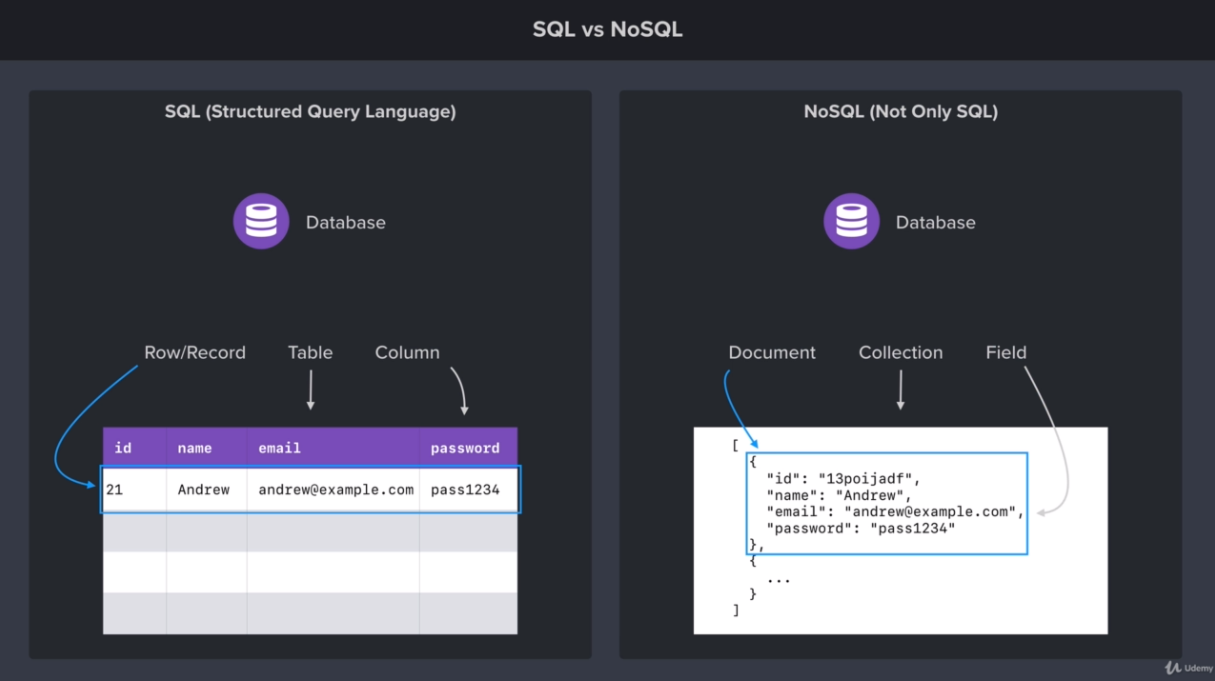
In this lesson, you’ll explore NoSQL databases and MongoDB. MongoDB and NoSQL database are a bit different than traditional SQL databases such as MySQL, so this lesson will bring you up to speed on some key ideas and terminologies related to NoSQL.
Look at the attached image for more information.
Installing MongoDB on macOS and Linux
In this lesson, you’ll learn how to install MongoDB on macOS and Linux. Using Windows? That’s covered in the next lesson.
You can download the MongoDB Community Server from the MongoDB download page. The download is a zip file. Unzip the contents, change the folder name to “mongodb”, and move it to your users home directory. From there, create a “mongodb-data” directory in your user directory to store the database data.
You can start the server using the following command. Make sure to swap out “/Users/Andrew/” with the correct path to your users home directory.
Installing MongoDB on Windows
In this lesson, you’ll learn how to install MongoDB on Windows. Using macOS or Linux? They were covered in the previous lesson.
You can download the MongoDB Community Server from the MongoDB download page. The download is a zip file. Unzip the contents, change the folder name to “mongodb”, and move it to your users home directory. From there, create a “mongodb-data” directory in your user directory to store the database data.
You can start the server using the following command. Make sure to swap out “/Users/Andrew/” with the correct path to your users home directory.
Installing Database GUI Viewer
In this lesson, you’ll set up Robo 3T. Robo 3T is a MongoDB admin tool that makes it easy to manage and visualize the data in your database.
Robo 3T is a completely free MongoDB admin tool. Grab the installer from here and get it installed on your machine.
Connecting and Inserting Documents
In this lesson, you’ll be connecting to your MongoDB database from your Node.js application. You’ll also learn how to insert documents into the database to save them for later.
Connecting to MongoDB
MongoDB provides a native driver that allows you to connect to your database from Node. You can grab the driver by installing the mongodb npm module as shown below.
With the driver installed, you can use the following code to connect to the database. You just need to provide two pieces of information. The first is the connection URL and the second is the name of the database. You can pick any database name that you like.
Inserting a Document
With the connection open, you’re ready to insert documents into the database. Remember
that a database is made up of collections, and collections are used to store documents.
The code below inserts a new document into the “users” collection. db.collection is used to get a reference to the collection you’re trying to manipulate. insertOne is used to insert a new document into that collection.
Inserting Documents
In this lesson, you’ll explore another way to insert documents into collections.
Inserting Documents
You already know that insertOne can be used to insert a single document. You can also
use insertMany to insert multiple documents at once. The example below inserts two
documents into “tasks” collection. insertMany expects an array of objects, an array of the
documents you want to insert.
The ObjectID
In this lesson, you’ll learn about ObjectIDs. MongoDB uses ObjectIDs to create unique identifiers for all the documents in the database. It’s different than the traditional auto- incrementing integer ID, but it comes with its own set of advantages.
Working with ObjectIDs
MongoDB provides ObjectID which can be used to generate new ObjectIDs. The
example below generates a new ID and prints it to the console.
An ObjectID is a GUID (Globally Unique Identifier). GUIDs are generated randomly via an algorithm to ensure uniqueness. These IDs can be generated on the server, but as seen in the snippet above, they can be generated on the client as well. That means a client can generate the ID for a document it’s about to insert in to the database.
Querying Documents
In this lesson, you’ll learn how to read data from MongoDB. This will allow you to fetch the documents that you had previously inserted.
Finding Documents
You can search for documents in a given collection using find or findOne. find can be
used to fetch multiple documents, while findOne can be used to fetch a single document.
The example below uses find to search for documents in the tasks collection. You can
provide an object as the first argument to find to filter the documents. The example below
sets completed equal to false to fetch only those tasks that haven’t been completed.
The next example uses findOne to find a single document by its ID. In this case, it’s
necessary to pass the string version of the ID to the ObjectID constructor function to
convert it to an ObjectID.
Promises
In this lesson, you’ll learn how to work with promises. Promises provide a much needed alternative to the traditional callback pattern.
Updating Documents
In this lesson, you’ll learn how to update documents stored in MongoDB.
Updating Documents
You can update documents in a collection using updateOne or updateMany. The first
argument for both updateOne and updateMany is similar to the first argument used with
find or findOne. It’s an object that allows you to filter down all the documents to just the
ones you want to update.
The update calls require a second argument as well. This is an object where you define the updates you want to make. For this, you need to use one of the supported update operators.
The updateOne call below uses $inc to increment the age field on the targeted document
by 1.
The updateMany call below uses $set to set the completed field to true for all documents
where the completed field is currently false.
updateOne updateMany Update operators
Deleting Documents
In this lesson, you’ll learn how to delete documents stored in MongoDB.
Deleting Documents
You can delete documents from MongoDB using deleteOne or deleteMany. Both accept
an object as the first argument. This object is used to filter just the documents you want to
delete.
The example below uses deleteMany to delete all users whose age field is 27.
This next example uses deleteOne to delete a single document, the first one with a
description of "Clean the house".
REST APIs and Mongoose
Section Intro: REST APIs and Mongoose
In this section, you’ll be creating a REST API using Express. You’ll learn what exactly a REST API is and how it can be used as the back-end for a web or mobile application. This section also covers data validation, application architecture, async/await, and more.
Setting up Mongoose
In this lesson, you’ll be setting up Mongoose. Mongoose makes it easy to model and manage your application data. This includes data sanitization, data validation, and more. Mongoose will serve as a replacement for the native driver, providing you with a more object-oriented interface.
Setting up Mongoose
First up, install Mongoose.
Like the MongoDB native driver, Mongoose provides a connect function you can use to
connect to your MongoDB database.
Modeling Your Data
The core feature of Mongoose is the ability to model your data. A new model can be created for the different types of data your application needs to store. You can create as many models as your application needs.
The code below defines a user model. The model definition is where you define what makes up a user. This would include all the pieces of data you want to store in the database. The user model below has just two fields, a name and an age.
With the model defined, it’s time to start creating and saving users. The User variable
above stores the Mongoose model. This is a constructor function that can be used to
create new users. The snippet below creates a new user with the name 'Andrew' and the
age 27. This alone won’t save any data to the database, but it’s a step in the right direction.
The new model instance can be saved to the database using the save method.
Creating a Mongoose Model
In this lesson, it’s on you to define a second Mongoose model for tasks.
If we open Robo 3T to view our data, we will notice that it created a new collection called "tasks", even though we didn't write this collection name anywhere. It gets this name from our mongoose.model where we define what our model should be called. It takes the name and makes it lowercase as well as pluralizes it.
Data Validation and Sanitization: Part 1
In this lesson, you’ll set up data validation and sanitization for your models. Validation will allow you to restrict what data can be stored in the database, while sanitization will allow you to store user data in a uniform and standardized way.
Data Validation and Sanitization
First up, install validator. While Mongoose provides basic tools for performing validation, the validator library provides useful methods for validating data such as email addresses, phone numbers, zip codes, and more.
Mongoose comes with support for basic validation and sanitization. The user model below
shows how this can be configured. required is used to validate that a value is provided for
a given field. trim is used to remove extra spaces before or after data. lowercase is used
to convert the data to lowercase before saving it to the database. You can find a complete
list of options in the schema documentation.
You can also define custom validation for your models. This is done using validate as
shown in the example below. The method gets called with the value to validate, and it
should throw an error if the data is invalid. The example below uses the isEmail method
from validator to validate the email address is valid before saving it to the database.
Data Validation and Sanitization: Part 2
Our challenge for this video was to add more data validation and sanitization to our task and user collections. Below is the custom password validation schema we set up.
Structuring a REST API
What exactly is a REST API?
- Representational State Transfer - Application Programming Interface (REST API of RESTful API)
We are going to use various HTTP methods to interact with the database.
- Create:
POST /tasks - Read:
GET /tasks - Read:
GET /tasks/:id - Update:
PATCH /tasks/:id - Delete:
DELETE /tasks/:id
Installing Postman
In this lesson, you’ll set up Postman. Postman makes it easy to test your REST API by providing you with a set of tools for making HTTP requests. This is not meant to serve as a replacement for a web or mobile application, it’s just a useful way to debug your endpoints as you’re creating them.
You can grab Postman here. It’s free and available for all operating systems.
Resource Creation Endpoints: Part 1
In this lesson, you’ll learn how to create REST API endpoints for creating resources. This will allow users of the API to create new users and new tasks.
Resource Creation Endpoints
Resource creation endpoints use the POST HTTP method. The URL structure is
/resources. If you wanted to create a user, it would be POST /users. If you wanted to
create a task, it would be POST /tasks.
The code below uses app.post to set up a POST request handler for /users. The handler
function creates a new instance of the user model and saves it to the database.
express.json is also setup to parse incoming JSON into a JavaScript object which you
can access on req.body.
Resource Creation Endpoints: Part 2
In this video, our task was to set up a resource creation endpoint for creating tasks. We set up a model for our Mongoose validation which looked like this:
From there, we set up a route on Express to listen and add the body data to our database if it's valid.
Resource Reading Endpoints: Part 1
In this lesson, you’ll learn how to create REST API endpoints for reading resources. This will allow users of the API to fetch users and tasks from the database.
Resource Reading Endpoints
Resource reading endpoints use the GET HTTP method. The URL structure is /resources
for a list of resources and /resources/:id for fetching an individual resource by its ID. If
you wanted to fetch all your tasks, it would be GET /tasks. If you wanted to fetch an
individual task with the ID of 198, it would be GET /tasks/198.
The code below uses app.get to set up a GET request handler for /users/:id. :id serves
as a placeholder for the ID of the user to fetch. If the request is GET /users/321, then the
ID will be 321. This is known as a URL parameter, and you can access the value for URL
parameters on req.params.
Resource Reading Endpoints: Part 2
In this video, our challenge was to create an endpoint that will return either all the tasks or if we have an id specified then we return the task with the matching id.
Promise Chaining
In this lesson, you’ll explore promise chaining. Promise chaining is a syntax that allows you to chain together multiple asynchronous tasks in a specific order. This is great for complex code where one asynchronous task needs to be performed after the completion of a different asynchronous task.
Promise Chaining
To demonstrate promise chaining, the following function will be used to simulate an asynchronous task. In reality, it’s just adding up a couple of numbers, waiting two seconds, and fulfilling the promise with the sum.
With the dummy asynchronous function defined, promise chaining can be used to call add
twice. The code below adds up 1 and 2 for a total of 3. It then uses the sum of 3 as the
input for another call to add. The second call to add adds up 3 and 4 for a total of 7.
Promise chaining occurs when the then callback function returns a promise. This allows
you to chain on another then call which will run when the second promise is fulfilled. catch
can still be called to handle any errors that might occur along the way.
Promise Chaining Challenge
To use promise chaining, we return new promises in our current .then call.
Async/Await
In this lesson, you’ll learn how to use async and await. These provide an improved syntax for working with promises. You’ll be able to write complex asynchronous code that looks like normal synchronous code. This makes it much easier to write and maintain asynchronous code.
Exploring Async/Await
The example below uses the add function that was created two lessons ago.
The first step to using async and await is to create an asynchronous function. This is done
using the async keyword before the function definition. This can be seen in the definition
of doWork below. Any function can be defined as an asynchronous function, not just arrow
functions.
With an async function in place, you can now use the await operator. The await operator
can only be used inside of asynchronous functions. This removes the need for excess
callbacks and makes code much easier to read.
The await operator is used with promises in asynchronous functions. You can see this
used three times in doWork. The await operator allows you to work with promises in a way
that looks like synchronous code. If the promise is fulfilled, the fulfilled value can be
accessed as the return value from the function. If the promise is rejected, it would be as
though the function threw an error. await will pause the function execution until the
promise is either fulfilled or rejected.
It’s important to note that async and await are syntax enhancements for working with promises. Promises are still at the core of asynchronous code that uses async and await.
MDN: async function MDN: await operator
Async/Await: Part 2
In this lesson, we refactored our previous promise chaining call to delete a Task by its id by using async functions.
Integrating Async/Await
In this lesson, you’ll be integrating async and await into the Express route handlers.
Integrating Async/Await
Below is a modified version of GET /users. The handler function was set up as an
asynchronous function which allows you to use await in the function. await is used with
the promise from User.find to get a list of all the users without needing to call then and
catch with handler functions. A try/catch statement is also used to handle any errors that
might occur.
Resource Updating Endpoints: Part 1
In this lesson, you’ll learn how to create REST API endpoints for updating resources. This will allow users of the API to update users and tasks that are already in the database.
Resource Updating Endpoints
Resource updating endpoints use the PATCH HTTP method. The URL structure is
/resources/:id for updating an individual resource by its ID. If you want to update an
individual task with the ID of 44, it would be PATCH /tasks/44.
app.patch is used to set up the Express route handler.
When working with updates, it’s a good idea to alert the user if they’re trying to update something that they can’t update. The code below checks that the user is only updating fields that can be updated, otherwise it will send back an error response.
If all goes well, the updates will be applied to the user, then a response will be sent back.
If the provided updates are valid, findByIdAndUpdate can be used to update the
document in the database. Try/catch is used here to send back an error if something goes
wrong when updating the user. This would include the new data not passing the validation
defined for the model.
Resource Creating Endpoints: Part 2
In this video our task was to create a patch endpoint that could be used to update tasks.
Resource Deleting Endpoints
In this lesson, you’ll learn how to set up a REST API endpoint for deleting resources. This video covers deleting users as well as a challenge for deleting tasks.
Deleting Resources
Resource deleting endpoints use the DELETE HTTP method. The URL structure is
/resources/:id for deleting an individual resource by its ID. If you want to delete an
individual task with the ID of 897, it would be DELETE /tasks/897.
app.delete is used to set up the Express route handler.
The handler itself can delete the resource using findByIdAndDelete.
Separate Route Files
In this lesson, you’ll learn how to organize your Express application endpoints. Defining all endpoints in a single file is a fine way to get started, but that won’t scale well as you add more routes to the app.
Creating Separate Routers
Express allows you to create as many routers as you want. These separate routers can
then be combined into a single Express application. You can create a new router using
express.Router as shown below. The example file below creates the router, adds routes,
and exports the router from the file.
The router defined in the file above can be added into the Express application in
index.js. This is done by loading the router in with require and then passing the router to app.use.
You can set up as many routers as you need for your application, though it’s
common to have a router for each distinct resource your REST API has.
API Authentication and Security
Section Intro
In this section, you’ll set up authentication for the task manager app. This will require users to log in before they’ll be able to manage their tasks. This section also covers password security, Express middleware, and more.
Securely Storing Passwords: Part 1
In this lesson, you’ll learn how to securely store user passwords by hashing and salting the password before storing it in the database.
Hashing Passwords
Storing plain text passwords is a bad idea. Most folks reuse password for multiple accounts online. That means if your database gets compromised, the hacker can reuse those credentials on other sites such as credit cards or bank accounts. We don’t want to leave our users open to further attacks.
The solution is to hash passwords using a secure one-way hashing algorithm. Users passwords will stay hidden and secure, even if the database is compromised.
Hashing Passwords with Bcrypt
First up, install the library. npm i bcryptjs@2.4.3.
The hash method can be used to hash the plain text password. The example below
hashes the password “Red12345!”.
The compare method is used to compare a plain text password against a previously
hashed password. This would be useful when logging in. The user logging in provides the
plain text password for their account. The application fetches the hashed password from
the database for that user. compare is then called to confirm it’s a match.
Securely Storing Passwords: Part 2
In this lesson, you’ll learn how to use Mongoose middleware. Middleware will allow you to automatically hash a user’s password before the user is saved to the database.
Mongoose Middleware
Middleware allows you to register some code to run before or after a lifecycle event for your model. As an example, you could use middleware to register some code to run just after a user is deleted. You could also use middleware to register some code to run just before the user is saved. This can be used to hash passwords just before saving users to the database.
The example below calls pre with the 'save' lifecycle event. This registers a function to
run just before users are saved. The function itself checks if the password has been
altered. If the password has been altered, the plain text password is overwritten with a
hashed version.